
How to Set Up IPTV on an Amazon Fire TV Stick in the UK
How to prepare your Amazon Fire TV Stick, install a compatible player from the Amazon Appstore and enter your login details, with Fire TV-specific fixes for common problems.
Using UKStream4K on a Fire TV Stick
To watch UKStream4K on a Fire TV Stick, you need three things:
- A Fire TV device running Fire OS, connected to your broadband.
- A compatible IPTV app for Firestick from the Amazon Appstore, such as TiviMate. Which apps are available varies by model and region.
- Your UKStream4K login details (Xtream Codes or an M3U link), which you receive after ordering.
Compatibility depends on your Fire TV model and the app you choose. If you are not sure which app to use, our team can help with choosing and setting one up where applicable. Plans start at £40 for 3 months: see plans and pricing. Watching on a smart TV instead? Read our Samsung and LG Smart TV guide.
Amazon Fire TV Overview & Hardware Comparison
The Amazon Fire TV Stick is a widely used streaming device in UK homes. It runs Amazon's Fire OS, decodes HD and 4K video in hardware, and installs player apps from the Amazon Appstore.
Before you buy a new device: most Fire TV models run Fire OS, which is what this guide covers. Some newer models run Amazon's Vega OS, which has a different app catalogue, so check that your chosen player app is available for that model before buying.
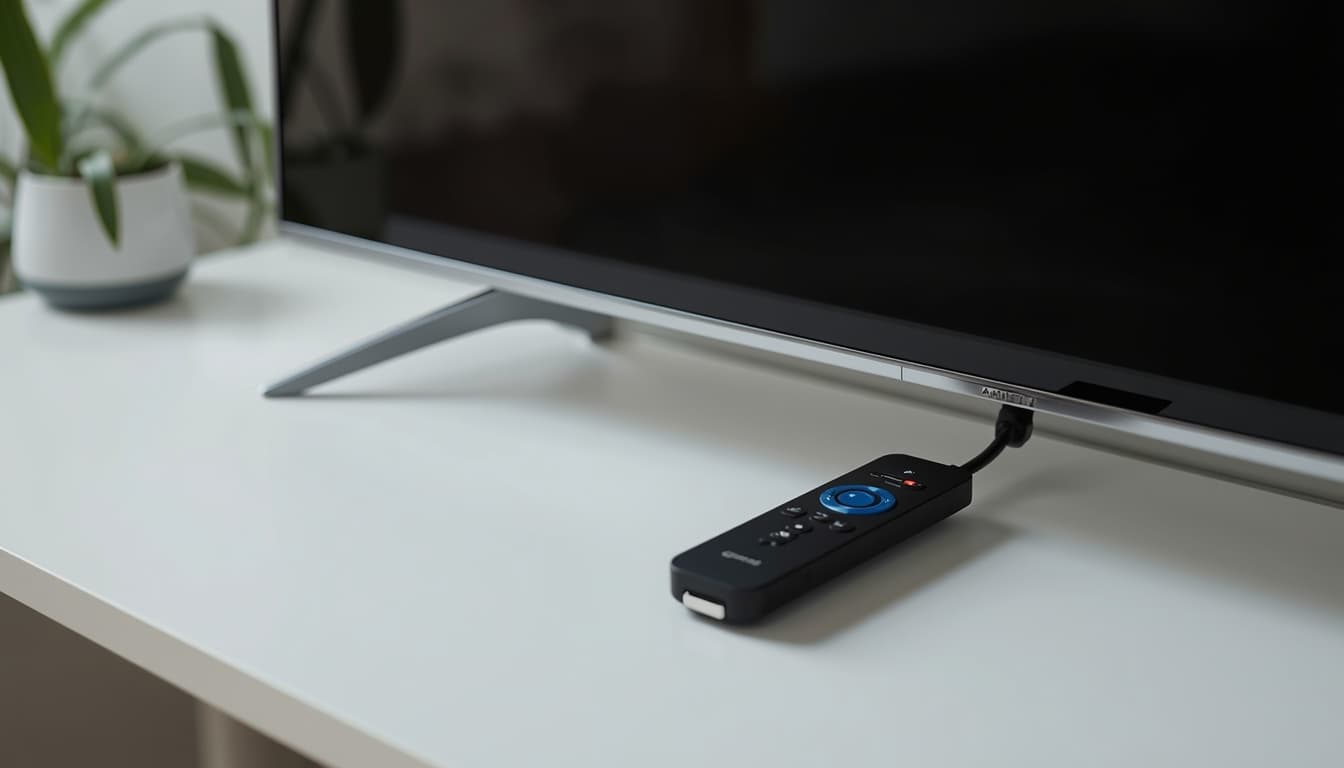
Amazon Fire TV Stick 4K Max (2nd Gen)
2.0 GHz Quad-Core, 2 GB RAM, 16 GB Storage, Wi-Fi 6ETop performance for 4K streams, rapid EPG guide rendering, and fastest UI responsiveness.
Amazon Fire TV Stick 4K (2nd Gen)
1.7 GHz Quad-Core, 2 GB RAM, 8 GB Storage, Wi-Fi 6Excellent all-round balance for HD and 4K UK television viewing.
Amazon Fire TV Stick HD / Lite
1.7 GHz Quad-Core, 1 GB RAM, 8 GB Storage, Wi-Fi 5Smooth 1080p full HD streaming. Periodically clear app cache due to 1 GB system RAM.
Amazon Fire TV Cube (3rd Gen)
Octa-Core Processor, 2 GB RAM, 16 GB Storage, Ethernet Port Built-InFlagship streaming device with integrated Ethernet connectivity for maximum network throughput.
Firestick Hardware Preparation Checklist
Dedicated Mains Power Adapter
Plug your Firestick into the wall using the official Amazon power adapter rather than a low-voltage TV USB port. Low voltage causes random restarts during high-bitrate video decoding.
5GHz Wi-Fi Band or Ethernet
Connect your Fire TV Stick to your router’s 5GHz Wi-Fi network (which offers higher bandwidth and avoids interference from household appliances) or use an official Amazon Ethernet adapter.
FireOS Firmware Updates
Check Settings > My Fire TV > About > Check for Updates to ensure your operating system has the latest video codec improvements and security patches.
Flash Storage Clearance
Verify in Settings > Applications > Manage Installed Applications that your Firestick has at least 1.5 GB of free flash storage to allow player applications to cache EPG data smoothly.
Step-by-Step Firestick Installation Walkthrough
Follow this numbered procedure to configure your media player and connect to your stream playlist:
Power On and Connect to Your Home Network
Insert your Amazon Fire TV Stick into an available HDMI port on your television. Connect to your home Wi-Fi network (5GHz recommended) or Ethernet adapter.
Install a Compatible Player App
Open the Amazon Appstore from your Fire TV home screen and search for a player app that supports Xtream Codes or M3U playlists (TiviMate is one example). App availability changes over time and varies by region, so check the listing on your own device.
Launch the Player and Select Login Method
Open your installed player app and select the option to add a new profile or playlist. Choose "Xtream Codes API" (recommended for faster login and automated EPG mapping) or "M3U URL" based on your preference.
Enter Your UKStream4K Login Details
Enter the server URL, username and password from your UKStream4K login details. Check that the spelling and port number match exactly.
Load the Programme Guide (EPG)
Let the app download your channel categories and programme guide. This can take a few minutes the first time; afterwards your channel list and TV guide are ready to use.
Performance Settings for Fire TV Devices
These Fire OS and player settings help playback and guide navigation run smoothly:
Match Original Frame Rate
In FireOS Settings > Display & Sounds > Display, enable "Match Original Frame Rate". This prevents micro-stutters when switching between 50Hz UK broadcast streams and 60Hz content.
Select Hardware Video Decoder
In your media player application settings, ensure the video decoder is set to "Hardware" (or "Hardware Plus"). Hardware decoding uses the Firestick’s dedicated GPU for smooth, efficient playback.
Periodically Clear Application Cache
As your player downloads daily EPG updates, cached files accumulate. Periodically clear the app cache via Settings > Applications > Manage Installed Applications > [Your App] > Clear Cache.
Configure EPG Refresh Frequency
Set your player’s EPG update frequency to "At App Launch" or "Every 24 Hours" to ensure your on-screen guide remains accurate without wasting internal storage.
Fire TV Troubleshooting
These fixes are specific to Fire TV devices. For login, playlist and programme guide errors that can happen on any device, see the error table in the general setup guide.
- Firestick restarts during playback: Power it from the wall with the Amazon mains adapter rather than a TV USB port, which may not supply enough power.
- Guide times one hour out: Go to Fire OS Settings > Preferences > Time Zone and verify that your location is set to United Kingdom (London). In your player app settings, check that EPG Time Offset is set to 0.
- Audio out of sync with video: Go to your media player's playback settings and toggle the hardware video decoder (e.g. switch between Hardware / Software / ExoPlayer).
- App crashing on startup: Check that your Firestick has at least 1.5 GB of free storage, then clear the app cache in Fire OS Settings > Applications > Manage Installed Applications.
Frequently Asked Questions About Firestick Setup
Most modern Fire TV devices work smoothly, including Fire TV Stick Lite, Fire TV Stick HD, Fire TV Stick 4K, Fire TV Stick 4K Max, and Fire TV Cube. Older 1st and 2nd generation Firesticks may experience slower menu responsiveness due to limited RAM.
No. Legitimate streaming players and standard playlist protocols operate natively on standard FireOS without jailbreaking, modifying device firmware, or bypassing Amazon security controls.
Test your broadband speed on the Firestick (for example in the Silk browser), switch to 5GHz Wi-Fi or an Ethernet adapter, restart your router and clear the player app cache in Fire OS settings.
TiviMate is a popular player on Fire TV and supports Xtream Codes and M3U logins, channel groups and XMLTV programme guides. Check that it is listed in the Amazon Appstore on your device.
Open your media player playback settings and toggle the audio/video decoder (e.g. switch between ExoPlayer and VLC engine, or toggle Hardware/Software decoding).
If you have checked your connection, re-entered your login details and restarted the player without success, contact support with your device model, player app name and the exact error message.
Ready to Set Up Your Fire TV Stick?
See current pricing for a UKStream4K plan, or read how M3U, Xtream Codes and EPG work before you start.