
How to Set Up IPTV on Samsung & LG Smart TVs
Step-by-step instructions for installing a compatible player from the Samsung or LG app store, connecting it by direct login or MAC-address upload, and keeping it running smoothly.
How Smart TV IPTV Works with UKStream4K
On a Samsung or LG Smart TV, IPTV comes together in four parts:
- Your Smart TV: a Samsung (Tizen) or LG (webOS) model connected to your broadband.
- A compatible player app from the TV's own app store. Some apps use a direct login, others use MAC-address upload, and some charge their own licence fee.
- Your subscription login details: Xtream Codes or an M3U link from UKStream4K.
- Setup: follow the Samsung or LG steps below, or ask our team for help where applicable.
Which apps are available depends on your TV's model year and region. If you are considering IPTV for a Samsung TV or an LG Smart TV and are unsure which app to use, choose the setup-help option when you order. View subscription plans to compare the 3-month, 6-month and 1-year options.
Smart TV Streaming Overview
Samsung (Tizen) and LG (webOS) Smart TVs let you install player apps directly from their built-in app stores, so you do not need a separate streaming stick.
Please note: which apps are available in the Samsung and LG stores depends on your TV's model year and region. Use apps from the official store only.
Two Ways Smart TV Apps Connect
- Direct login: the app shows fields for a server URL, username and password. Type in your Xtream Codes details with the remote.
- MAC-address upload: the app shows your TV's MAC address and a device key. On a phone or computer, open the website address shown in the app, enter the MAC address and key, and paste your M3U playlist link. Then restart the app on the TV. This avoids typing a long link with the remote.
Not sure which details are which? The M3U, Xtream Codes and EPG guide explains each format.
Supported Smart TV Operating Systems
Samsung Smart TVs (Tizen OS 2017+)
Samsung TVs from 2017 onwards run Tizen OS with the official Samsung Apps store. Compatible player apps (such as Smart IPTV, IPTV Smarters Pro, Nanomid or IBO Player) can be installed with your Samsung remote, with no extra hardware. Availability varies by model year.
LG Smart TVs (webOS 3.0 and later)
LG Smart TVs run webOS with the LG Content Store. Compatible player apps can be installed without extra hardware and support either MAC-based playlist upload or a direct Xtream Codes login.
Samsung Smart TV (Tizen OS) Setup Walkthrough
Follow these steps to set up a player on Samsung Smart TVs from 2017 onwards (Tizen OS):
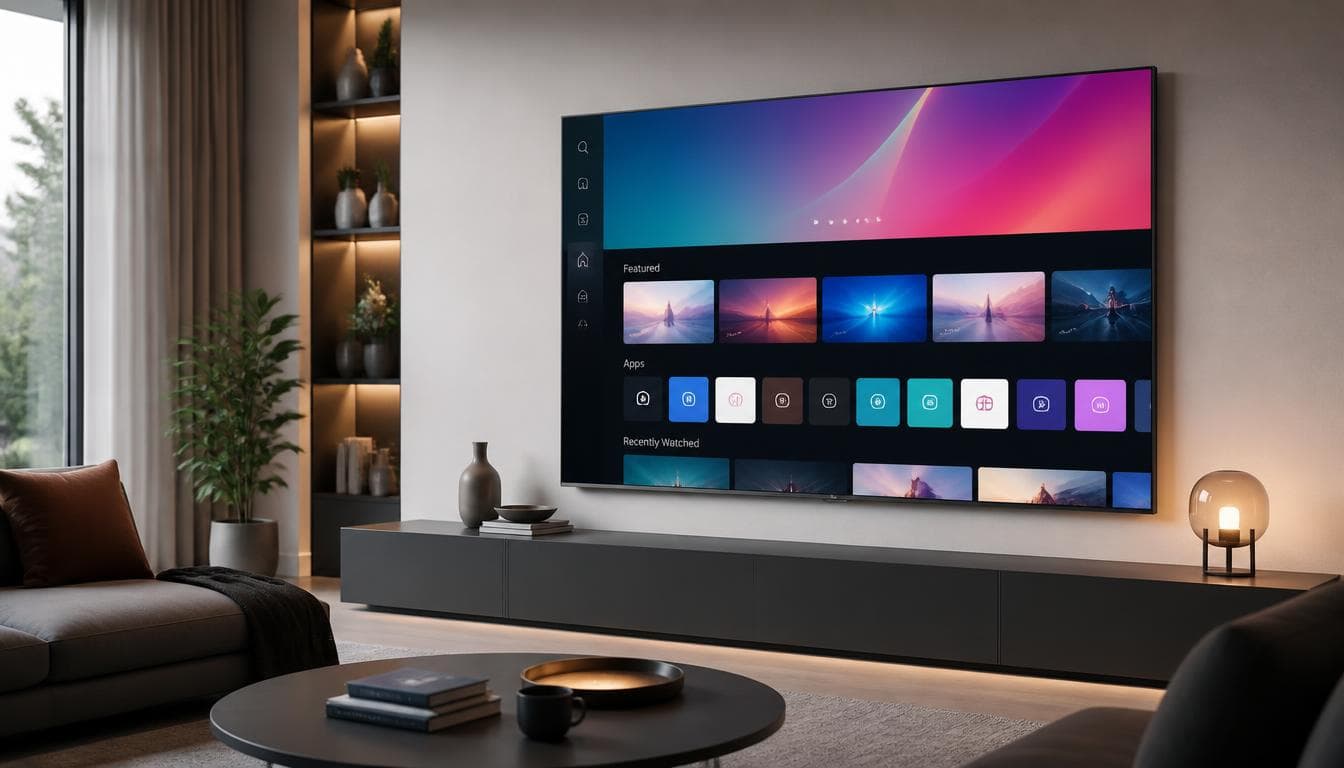
Open the Samsung Apps Store on Your Tizen TV
Press the Home button on your Samsung Smart Remote, navigate to the "Apps" icon along the Smart Hub bar, and open the official Samsung App Store.
Install a Compatible Player App
Search the UK Samsung store for a player that supports Xtream Codes or M3U (such as Smart IPTV, IPTV Smarters Pro, Nanomid or IBO Player), then install it.
Find the MAC Address or Login Screen
Open the app. Depending on the player, it will either show your TV’s MAC address and device key (for web upload) or offer on-screen fields for your login details.
Enter Your UKStream4K Login Details
Enter your Xtream Codes details in the app, or upload your M3U playlist link through the developer’s website. Save, then restart the app on your TV.
LG Smart TV (webOS) Setup Walkthrough
Follow these steps to set up a player on LG Smart TVs running webOS 3.0 or later:
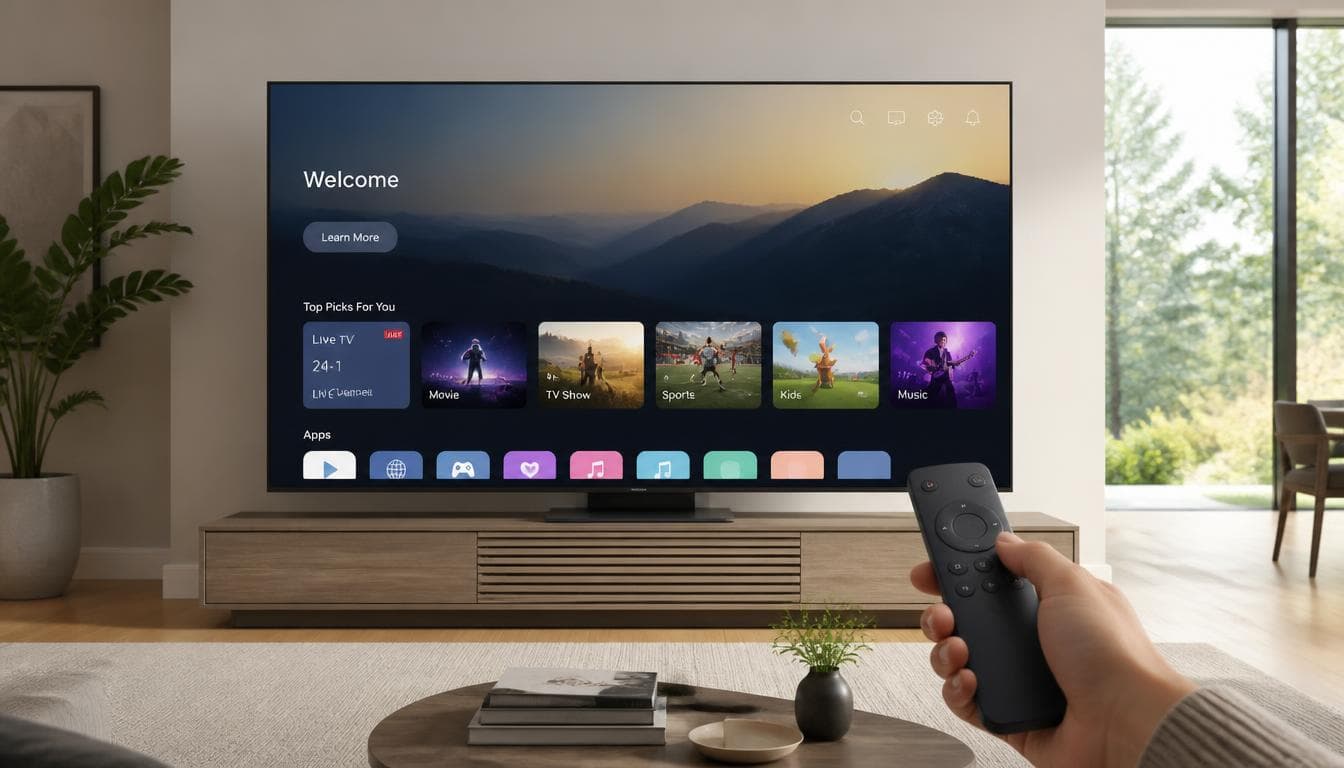
Access the LG Content Store / LG Apps on webOS
Press the Home button on your LG Magic Remote and select the "LG Content Store" (or "Apps" on webOS 6.0 and newer).
Download a Legitimate Media Player App
Search for compatible webOS media players (such as Smart IPTV, IBO Player, IPTV Smarters, or SS IPTV) and install the app to your LG dashboard.
Link Your Playlist via App Credentials
Launch the application on your LG TV. Enter your Xtream Codes login details or upload your M3U URL via the player’s official playlist upload portal.
Refresh Channel Categories and EPG Guide
Restart the player application to download the channel categories and live programme guide data for UK viewing.
Smart TV Best Practice
These habits help a Smart TV player run smoothly:
Wired Ethernet Connection (Recommended)
Smart TV Wi-Fi antennas are situated behind the large screen panel, which can cause Wi-Fi signal attenuation. Connecting an RJ45 Ethernet cable directly from your router to your TV ensures maximum bandwidth and minimal packet loss.
Memory & Storage Management
Smart TVs have limited internal flash memory. Uninstall unused default TV apps to free up internal storage and allow your streaming player to cache EPG data and channel lists smoothly.
Close the App Fully
Exit the player completely when you finish rather than leaving it running in standby. This frees memory and makes the app fetch fresh programme guide data on its next launch.
Understanding Third-Party Player Licenses
Certain Smart TV players (like Smart IPTV or IBO Player) are independent third-party software products that require a small one-time app activation fee payable directly to the app developer.
Frequently Asked Questions About Smart TV Setup
Not necessarily. If a compatible player is available in your TV’s app store, you can use it without extra hardware. On older TVs, a streaming stick such as a Fire TV Stick 4K is often faster to navigate.
Players such as Smart IPTV and IBO Player are made by independent developers. Their one-off app licence fee is paid to the developer and is separate from your UKStream4K plan.
Older Smart TVs have limited RAM and processing power. You can improve performance by connecting your TV via an Ethernet cable, closing background apps, or reducing the player stream buffer in the app playback settings.
Yes. Most modern Smart TV player apps (including IPTV Smarters and IBO Player) provide dedicated Xtream Codes login forms requiring only Server URL, Username, and Password.
Some player apps use your TV’s MAC address so you can upload your M3U playlist link from a phone or computer browser instead of typing it with the remote. Use only the website shown in the app.
Contact UKStream4K if you need assistance with your subscription credentials, server URL, or EPG feed. Contact the app developer if you experience issues with app licensing, app purchase activation, or player interface bugs.
Ready to Set Up Your Smart TV?
UKStream4K plans start at £40 for 3 months. See every plan, or check the general setup guide first.